Model Groups
Model groups offer a powerful way to control the pool of models available to the router, ensuring your requests are only handled by a specific subset of models that you define. This is particularly useful for tailoring the router's behavior to specific use cases, managing costs, or ensuring certain features are available.
Quickstart Guide
- Navigate to the Groups Page: Visit the Groups page to see all available public and private groups.
- Choose a Group: You can either use a pre-made public group or create your own private group.
- Note the Group Name: Take note of the group's name (e.g.,
qwen,openai,anthropic, or your custom name). - Use it in the API: Specify the group in your API call by setting the model parameter like this:
model='[group name]/auto'.
Understanding Model Groups
When you visit the Groups page, you will see a comprehensive list of both public and private model groups available to you.
Clicking on any model within a group will reveal a panel with crucial information, including:
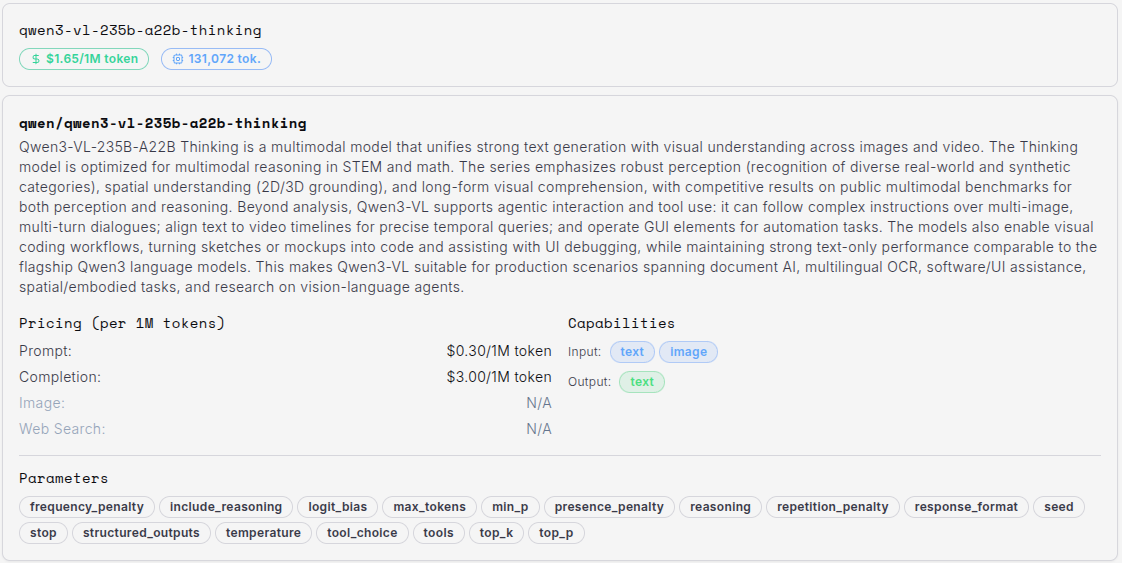
- Pricing: This shows the model's average price across all providers. The actual cost may vary based on provider availability at the time of the request.
- Parameters: This section is especially important. It lists all the supported parameters for that model. If your API call includes parameters that a model does not support, the router will automatically exclude that model from consideration for that specific request.
Image Pricing
For models that support image inputs, if a specific image price is not listed, you can assume the cost per image token is the same as a standard text token. As a general estimate, a 1024x1024 image is roughly equivalent to 1024 tokens.
Public Groups
Public groups are collections of models curated and maintained by us. They are typically organized by the endpoint (e.g., openai, google, anthropic).
- You cannot modify public groups.
- They are updated daily to reflect the latest model availability from our providers.
Private Groups
Private groups give you full control over the model pool. You can create your own groups tailored to your specific needs.
Creating Private Groups
- Start Creation: Click the "Create" button on the Groups page or go directly to the creation page.
- Select Models: Choose the specific models you want to include in your group.
- Name and Create: Assign a unique name to your group and click "Create".
- Implementation: Use the name you just created in your API calls:
model='[your-group-name]/auto'.
Important: Match Models to Your Use Case
When creating a group, carefully consider the types of requests you will be making. If your workflow requires specific capabilities like image analysis, function calling, or streaming, you must include models that support those parameters in your group. If no model in the group is compatible with the parameters of a request, the router will be unable to process it.